
Introducing the tensorIntCHT Template
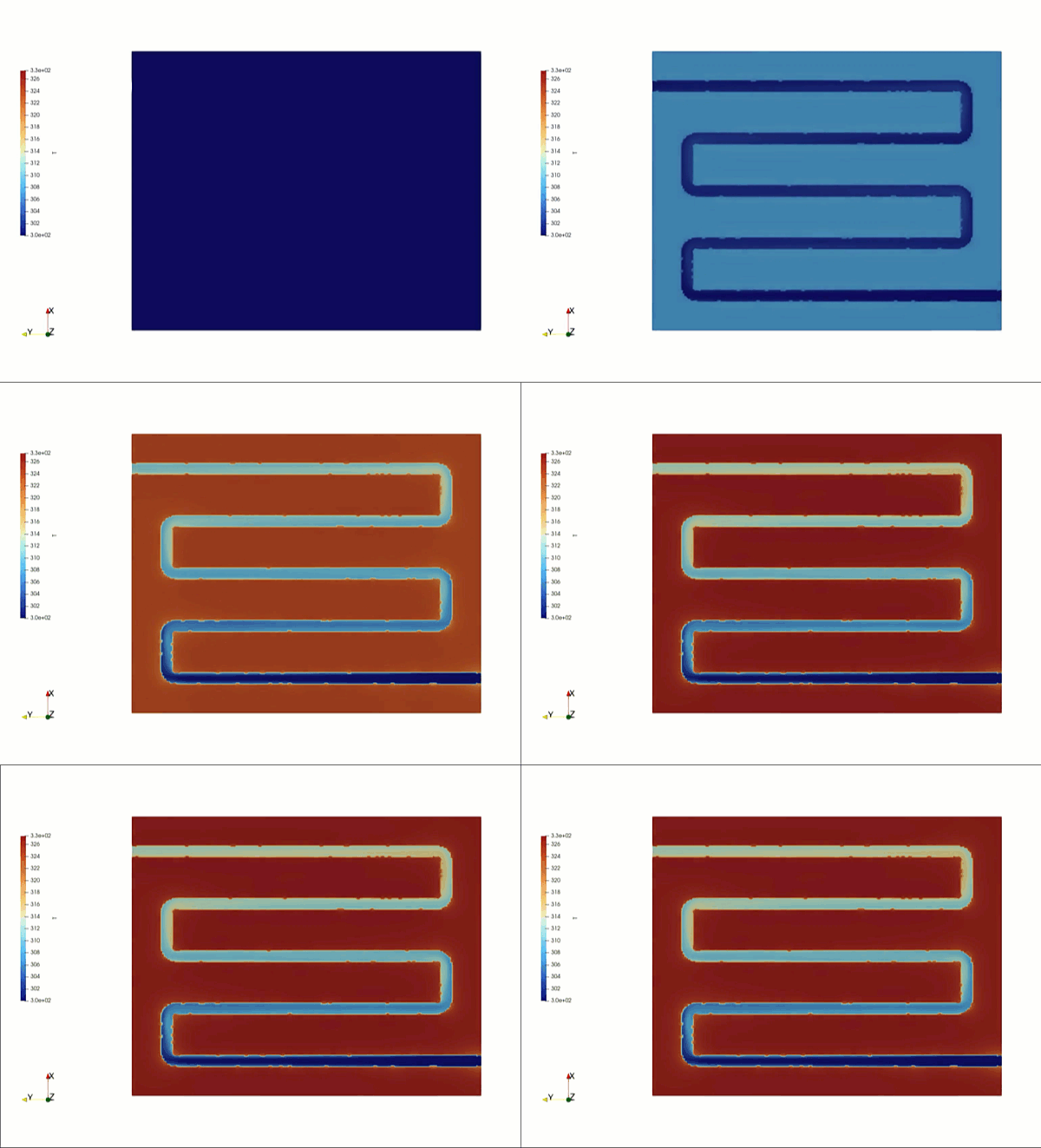
The tensorIntCHT template is a specialized folder within this project that focuses entirely on conjugate heat transfer. This template simulates how heat transfers between two different states of matter—specifically, a liquid flowing through a solid metal plate channel. It simultaneously calculates the fluid dynamics of the liquid and the thermal conduction inside the solid metal block. If you use this specific template for your work, all that is asked is that you mention and give credit to tensorIntCHT in your reports or projects.
How to Run Your First Simulation
Running the simulation is entirely automated through three simple terminal commands. First, you run a cleanup command to clear out any old data. Second, you run the meshing script, which automatically builds independent mesh grids for both the liquid and the solid regions. Third, you launch the solver script to run the calculations in parallel across multiple processors. Once finished, a reconstruction script automatically merges all the processor data back together into a single, seamless result file.
Changing the Flow and Heating Settings
Unlike other templates, you do not edit the initial setup folder by hand. Instead, you change settings using an automated dictionary updater. To change liquid properties—like the inlet mass flow rate, liquid temperature, or outlet pressure—you simply edit the text file inside the fluid system directory. To adjust how much heat is applied to the solid plate, you open the solid system directory and edit the heat flux value (measured in Watts per square meter). If you are only changing these values without changing the 3D shape, you can skip the meshing step and update the settings directly using a quick terminal command.
Changing the 3D Channel and Plate Shape
To test your own design, you drop your new 3D files into the geometry folder using four standard .stl shapes: the channel wall tube, an inlet cap, an outlet cap, and a single watertight combination file that merges all three pieces together. Next, you resize the virtual background box so your new geometry fits completely inside it with a small safety margin. Finally, you must adjust two coordinate points in the setup files: one point that sits inside the liquid channel, and a separate point that sits inside the solid plate. This tells the software exactly where the fluid ends and the solid metal begins. Once aligned, run the cleanup and mesh scripts from scratch to build your new layout.
A Quick Warning
Please keep in mind that this template is a development version. This means some of the background settings might not be perfectly optimized for every single scenario yet. The accuracy of the final answers depends entirely on your specific setup and shape, so pt-tensor.com does not take responsibility for the final simulation data. Always double-check your engineering results.
Author: Caesar Wiratama
Find me on Linkedin